
Introduction: Why Your Tajima Keeps Making a Mess of Your Logo
You finally bought a Tajima. Maybe it is a single-head for your garage business, or maybe you run a small shop with a multi-needle beast. Either way, you expected magic. You loaded a simple JPG of your logo, hit start, and watched in horror as the needle tore through fabric, thread piled up in knots, and the final design looked like a tangled mess. Sound familiar? Here is the hard truth: a Tajima does not read pictures. It reads stitch files. And you cannot just feed it a random image from your phone. You need to properly Convert Image for Tajima Embroidery Machine into a language it understands, like DST, PES, or Tajima’s own native formats. This guide walks you through the entire process, no computer science degree required. Just plain steps, honest advice, and the kind of tips that save you hours of frustration.
What Your Tajima Actually Needs (It is Not a Photo)
Let us get one thing straight. Your Tajima embroidery machine is a brilliant piece of engineering, but it is also completely dumb when it comes to pictures. It does not see colors, shapes, or shadows. It only sees needle punctures. A standard image file like JPEG, PNG, or BMP contains millions of colored pixels. Your Tajima cannot interpret pixels. It needs a digitized embroidery file that contains stitch-by-stitch commands: where to plunge the needle, how long each stitch should be, when to change thread color, and when to trim and move to the next section.
The most common formats for Tajima machines are DST (Tajima’s own original format), PES, and sometimes EXP. DST is the gold standard. It is compact, reliable, and every Tajima ever made reads it. But here is the catch: you cannot just rename a picture to .dst and call it a day. That corrupts the file. You need to go through a proper conversion process using digitizing software. Think of it like translating a book from English to Japanese. A bad translator creates nonsense. A good translator preserves the meaning. You want the good translator.
Step 1: Start with a Clean, High-Contrast Image
Your conversion journey begins with the artwork itself. Garbage in, garbage out. Pull up your logo on a computer. If it is a tiny 200×200 pixel image saved from a website footer, stop right there. That will never stitch well. You need a clean, high-resolution source file.
The absolute best starting point is a vector file, like .ai, .eps, or .svg. Vector graphics use mathematical paths instead of pixels, so they scale infinitely without blurring. If you have a vector, open it in Adobe Illustrator, Inkscape (free), or CorelDRAW. Simplify the design. Embroidery hates tiny details. Merge overlapping shapes. Remove any gradients, drop shadows, or glow effects because those do not translate to thread. Replace them with solid colors. Keep the total number of colors between one and six. More colors mean more thread trims, more stops, and more chances for things to go wrong.
If all you have is a raster image (JPG or PNG), do not panic. Open it in a photo editor. Boost the contrast. Convert it to a clean black-and-white or spot-color image. Remove stray pixels and rough edges. Then save it as a large PNG at 300 DPI with a transparent background. This gives your digitizing software a clear road map to follow.
Step 2: Pick Your Digitizing Software – You Have Real Options
You cannot convert an image to a Tajima stitch file without the right software. Here is your realistic lineup.
For the budget beginner: Download Inkscape (free) and install the InkStitch plugin. InkStitch is powerful but has a learning curve. Expect to watch a few YouTube tutorials. It allows manual digitizing and even auto-digitizing for simple shapes. Auto-digitizing works okay for solid geometric logos but fails hard on text or detailed illustrations.
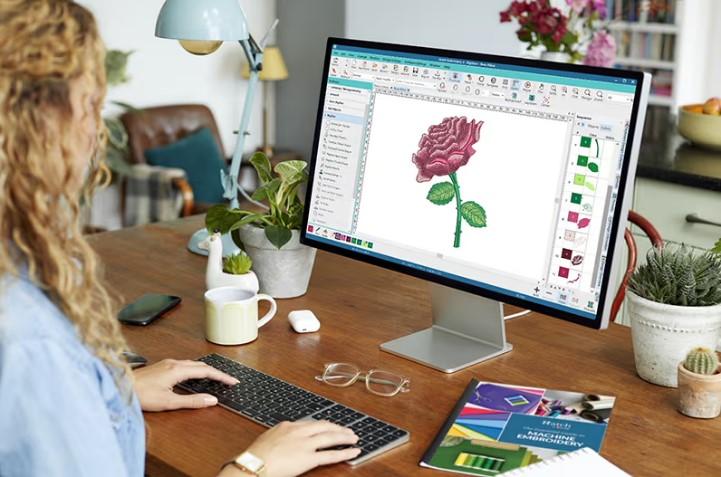
For the serious hobbyist or small business owner: Spend money on Hatch Embroidery (from Wilcom) or Embrilliance StitchArtist. Hatch is widely considered the most beginner-friendly pro software. It costs a few hundred dollars but pays for itself after a handful of projects. You get full control over stitch angles, pull compensation, underlay, and Tajima-specific export settings.
For the professional shop: Wilcom EmbroideryStudio or Tajima DG15 by Pulse. These are expensive ($1,000+) and overkill for casual users. But if you run a production embroidery business, you need them.
One more option if you only have one or two logos: hire a professional digitizer. You send your clean image, they send back a ready-to-sew DST file for your Tajima. Expect to pay 10to10to25 per logo. This is cheap insurance against ruined garments and wasted time.
Step 3: Manual Digitizing for Tajima – Step by Step
Let us assume you have Hatch or InkStitch open, and you have imported your cleaned-up logo. Follow these exact steps.
First, set your hoop size and fabric type in the software. A stretchy polo shirt needs different handling than a stiff denim jacket. For stretchy or loose fabrics, add more underlay stitches and use a shorter stitch length. For thick fabrics like caps or heavy canvas, reduce your overall stitch density so the needle does not fight too much.
Second, break your logo into separate stitch regions. Do not treat the whole design as one giant blob. Separate the background circle, the company name, the slogan, and any little icon into different objects. Each object gets its own stitch plan.
Third, assign the correct stitch type for each region.
- Use satin stitches for borders, letters, and any thin line up to about 6mm wide. Satin stitches are dense and shiny.
- Use tatami fill stitches for large solid areas like a filled circle or a thick shape. Tatami stitches look like a grid and lay flat.
- Use running stitches for fine details, outlines, and small accents.
Fourth, set your stitch angles. Newbies ignore this, and their designs pucker. Every fill region needs a stitch angle that runs across the shape, not parallel to the longest edge. For text, angle your stitches at 45 degrees. For circles, use a 90-degree angle or a spiral pattern. Never stitch everything at the same angle, or the fabric will pull unevenly.
Fifth, add pull compensation. This is the secret sauce. When a needle punches through fabric, the fabric pulls inward slightly. That means your perfectly drawn 1-inch circle will stitch out as a 0.9-inch oval. To fix this, add 0.3mm to 0.5mm of extra width to all satin columns and fill edges. Your software likely has a slider labeled pull compensation. Turn it on and set it to medium.
Step 4: Underlay – The Invisible Layer That Makes or Breaks Your Design
Underlay is a set of loose, light stitches that go down first, before your main visible stitches. Nobody sees them, but they do critical work. They stabilize the fabric, prevent puckering, and keep your top stitches from sinking into soft materials.
For most logos on standard fabrics like cotton or polyester, use a center run underlay for satin columns and an edge run underlay for fill areas. For stretchy or loose fabrics like pique or fleece, add a zigzag underlay. Set your underlay density to about half the density of your top stitches.
Never skip underlay to save time or thread. I promise you, skipping underlay is the number one reason Tajima owners stare at a wrinkled, sunken mess and wonder what went wrong.
Step 5: Exporting for Your Tajima – The Right Format
You have digitized every region, set your color change sequence, and run the software simulation to check for problems. Now it is time to export for your Tajima.
Go to File > Save As or Export. Look for DST (Tajima) in the format list. DST is the native format for Tajima machines. It is safe, reliable, and works on every Tajima model from the old mechanical units to the newest multi-needle machines. Some newer Tajima machines also accept PES or EXP, but DST is your safest bet.
Important warning: Do not simply rename a file from .jpg to .dst. That does nothing but confuse your machine. You must use the export function inside your digitizing software. The software writes the actual stitch data, color change commands, and trim signals into the file.
If your software does not list DST, export as PES or CND first, then use a free online converter to change it to DST. But be aware that converting outside your original software can sometimes strip out underlay and pull compensation. Always test the converted file on a scrap piece before stitching an expensive garment.
Step 6: Test Stitch on Scrap Fabric – No Exceptions
You have your shiny new DST file on a USB stick or SD card. You walk over to your Tajima, load the file, and thread the machine. Do not stitch on your final product yet. This is the rule that separates amateurs from pros.
Grab a piece of cheap muslin, an old t-shirt, or any scrap fabric similar to your final material. Hoop it with the appropriate stabilizer (tear-away for stable fabrics, cut-away for stretchy knits). Run the design.
Watch closely for these problems:
- Thread breaks? Your stitch density is too high, or your needle is the wrong size.
- Gaps between color regions? Your pull compensation is off.
- Fabric puckering or rippling? Your stabilizer is too light, or you skipped underlay.
- Long, loose jump stitches that should trim? Add trim commands in your software.
Based on what you see, go back to your digitizing software, tweak the settings, re-export to DST, and test again. A professional digitizer test-stitches three to five times before calling a design finished. Be patient.
Bonus: Three Tajima-Specific Tips Most People Never Learn
Tip one: Tajima machines have slightly different pull characteristics than other brands. They tend to pull fabric inward more aggressively, especially on satin stitches. Set your pull compensation slightly higher than you would for a Brother or Janome. Add about 0.4mm instead of 0.3mm.
Tip two: Keep your stitch density between 0.35mm and 0.45mm for most fabrics. Denser than that, and thread breaks become common. Looser than that, and your logo looks sparse and cheap.
Tip three: Use your Tajima’s built-in test mode. Every Tajima has a function to run a design without thread, just watching the hoop move. Use this to spot wild jumps or weird pathing before you waste thread and stabilizer.
Conclusion: Flawless Stitches Start Here
Look, converting an image for a Tajima machine is not magic. It is a process. You start with a clean image, you use proper digitizing software, you set stitch angles and pull compensation, you add underlay, you export to DST, and you test stitch on scrap fabric. It takes a little time and a little patience. But when you properly Convert Image for Tajima Embroidery Machine using these steps, the results speak for themselves. No thread breaks. No puckering. No sinking letters. Just a crisp, clean, professional logo that makes you look like you have been doing this for years. Now go fire up that Tajima and stitch something beautiful.